Prerequisites
Before running the script you need:
- Windows 10 or 11 (x86-64 — the script filters out ARM64 assets automatically)
- PowerShell 5.1+ — ships with Windows, no install needed
- winget — the Windows Package Manager. If it's missing, install App Installer from the Microsoft Store
- Internet access — the script pulls from winget and GitHub releases
- A normal PowerShell window — Windows or winget will prompt for elevation if a particular installer requires it. Do not run Playnite elevated.
7-Zip is a dependency for extracting some archives (.7z and self-extracting .exe). The script installs it automatically via winget as its first step.
What it does (and doesn't)
If you're rebuilding a PC, setting up a second machine, or simply want a repeatable installation process, this script saves around an hour of repetitive work. It does three things: creates a folder structure under D:\Gaming (configurable), installs emulators, and prints a summary of what worked, what was already present, and what needs manual attention.
The script is re-runnable. Existing folders are skipped, and emulators that are already installed are detected and skipped. Running it again after a partial failure only retries the parts that didn't work.
Running it
Save the script or download it directly, then open a normal PowerShell window and run:
Set-ExecutionPolicy -Scope Process -ExecutionPolicy Bypass -Force
.\setup-emulation.ps1
The run takes 5–15 minutes depending on your connection. Each emulator prints a status line as it installs. A summary at the end lists everything installed, everything skipped, and anything that needs manual attention.
GITHUB_TOKEN environment variable with a personal access token (read-only scope is fine) before running.
Switches
| Switch | What it does |
|---|---|
-Base E:\Games | Change the install location. Default is D:\Gaming. Everything — emulators, ROM folders, BIOS folders, saves — goes under this path. |
-SkipManual | Skip the GitHub direct downloads. Only creates folders and runs winget installs. Faster, but misses RPCS3, xemu, Xenia, Flycast, Vita3K, shadPS4, Azahar, MAME and Dolphin. |
-SkipWinget | Skip all winget installs. Only creates folders and runs direct downloads. Useful if winget is broken or unavailable. |
Emulators installed
| Emulator | Method | Systems covered |
|---|---|---|
| RetroArch | winget | NES, SNES, N64, Mega Drive, Master System, Game Gear, Atari 2600, C64, ZX Spectrum (via cores — see below) |
| Playnite | winget | Frontend / launcher — not an emulator itself |
| DuckStation | winget | PlayStation 1 |
| PCSX2 | winget | PlayStation 2 |
| PPSSPP | winget | PlayStation Portable |
| Cemu | winget | Wii U |
| mGBA | winget | Game Boy, Game Boy Color, Game Boy Advance |
| melonDS | winget | Nintendo DS |
| DOSBox Staging | winget | DOS |
| Dolphin | direct download | GameCube, Wii |
| RPCS3 | direct download | PlayStation 3 |
| xemu | direct download | Xbox (original) |
| Xenia | direct download | Xbox 360 |
| Flycast | direct download | Dreamcast |
| Vita3K | direct download | PlayStation Vita |
| shadPS4 | direct download | PlayStation 4 |
| Azahar | direct download | Nintendo 3DS |
| MAME | direct download | Arcade |
Dolphin and MAME are handled by direct download even though winget entries exist for both — Dolphin's winget package pointed to a dead URL, and MAME's winget package is a self-extracting archive that hangs indefinitely when run with the --silent flag. Both are fetched directly and extracted via 7-Zip instead.
RetroArch cores
RetroArch ships with no cores installed. You need to add them manually before it can emulate anything. Open RetroArch and go to Online Updater → Core Downloader, then install these:
| Core | Systems | Notes |
|---|---|---|
| Nestopia UE | NES | Good accuracy and compatibility |
| Snes9x | SNES | Best compatibility for SNES library |
| Mupen64Plus-Next | N64 | Use GLideN64 renderer — paraLLEl-RDP crashes at high upscale |
| Genesis Plus GX | Mega Drive, Master System, Game Gear | One core handles all three — see Playnite setup below |
| Stella | Atari 2600 | |
| VICE x64sc | Commodore 64 | x64sc = accurate; x64 = faster |
| Fuse | ZX Spectrum |
Alternatively, download core files directly from the RetroArch buildbot and place them in the cores subfolder inside your RetroArch install.
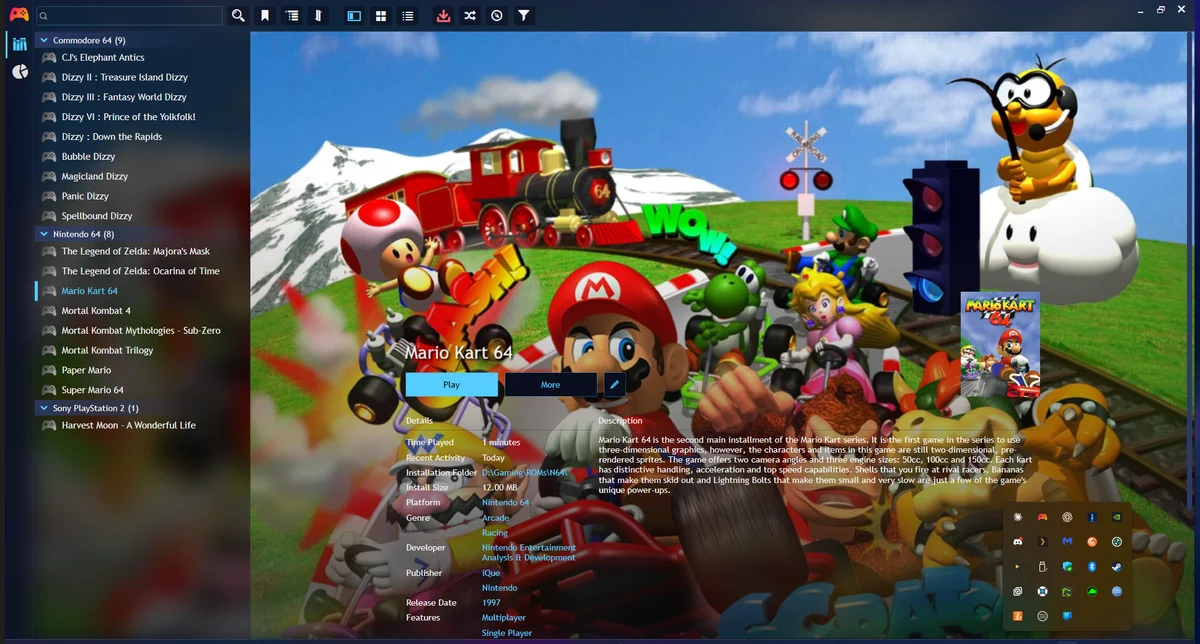
Playnite setup
Once emulators are installed, Playnite needs to know about them and where your ROMs are.
1 — Import emulators
Go to Library → Configure Emulators → Import. Point Playnite at your emulators folder and your winget install paths. It will detect most emulators automatically by executable name.
2 — Add scan configurations
For each system, add an auto-scan configuration: Library → Configure Emulators → (select emulator) → Add Scan Configuration. Set the ROM folder, the emulator profile, and — critically — the platform.
3 — Run a test scan
Drop one test ROM per system into the appropriate folder and run a scan before adding your real collection. Verify each game imports under the correct platform and launches. Fix any misconfigurations before bulk importing.
BIOS files
Some systems require BIOS dumps to run. These are firmware files from the original hardware — you need to source them yourself. The script creates the BIOS folders; you supply the files.
| System | Required files | Drop them in |
|---|---|---|
| PlayStation 1 | scph5501.bin (US) or scph7502.bin (EU) | BIOS\PS1\ |
| PlayStation 2 | A PS2 BIOS dump (region-matched to your ROMs) | BIOS\PS2\ |
| Xbox (original) | Xbox MCPX and BIOS files | BIOS\Xbox-Original\ |
| PlayStation Vita | Vita firmware — install via Vita3K's own setup wizard | Vita3K handles this internally |
Everything from NES through N64 — and most other systems — needs no BIOS at all.
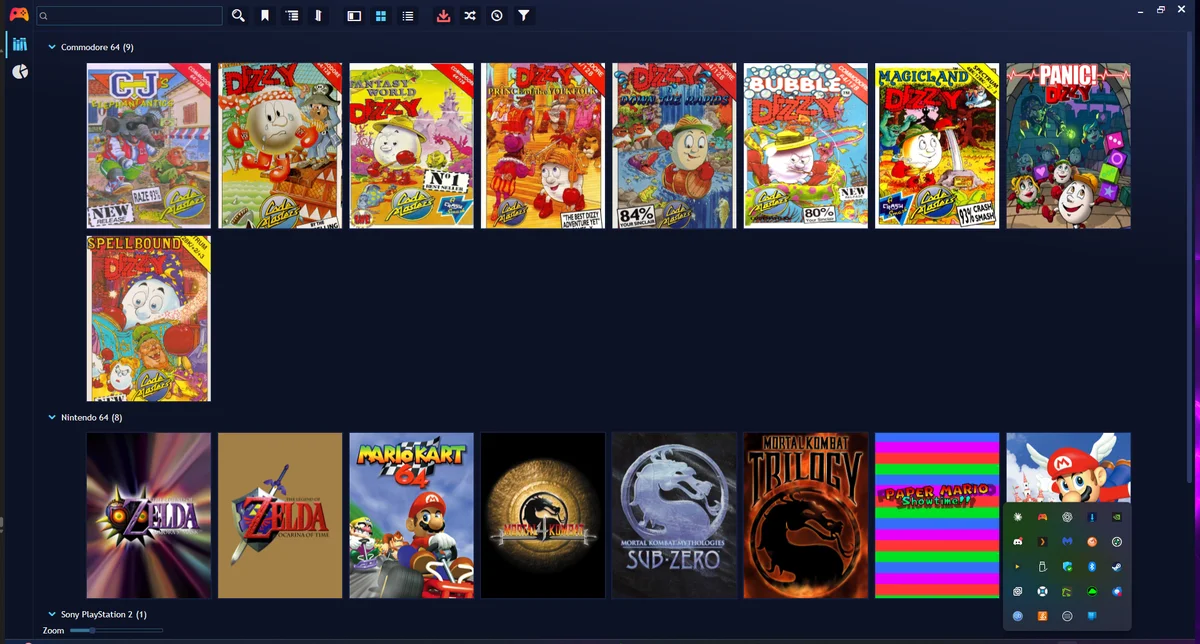
Box art
Games import from a scan with no artwork. To get cover art, Playnite needs a metadata source that can match ROM files reliably.
IGDB (the default) matches by filename. Most ROM collections use the No-Intro naming standard, which encodes region codes and revision flags in the filename — IGDB struggles to match these to clean game titles, so bulk scraping returns incomplete results.
ScreenScraper matches by file hash instead of filename. It calculates an MD5 of the ROM, looks it up in a community database, and returns the correct artwork regardless of what the file is called. It's the right tool for a ROM collection.
To set it up: in Playnite go to Library → Download Metadata → ScreenScraper, create a free account at screenscraper.fr, and enter your credentials. Free accounts have a daily request limit — run scraping in batches if you have a large collection.
The script
The header comments contain the full parameter reference. Save the file or download it below, then run from a normal PowerShell window.
▶ Show PowerShell source
#Requires -Version 5.1
<#
.TESTED
    Windows 11 24H2 / PowerShell 5.1 / winget 1.12
.SYNOPSIS
    Windows Emulation Setup.
    Creates a tidy folder structure, installs 17 emulators (winget + direct
    GitHub releases), and prints a summary of what still needs human attention.
.DESCRIPTION
    Sets up: RetroArch, Playnite, DuckStation, PCSX2, RPCS3, PPSSPP, Vita3K,
    shadPS4, Dolphin, Cemu, xemu, Xenia, mGBA, melonDS, Azahar, Flycast,
    MAME and DOSBox Staging - covering ~23 systems.
    Change $Base below to wherever you want everything installed, then run
    in a normal PowerShell session (elevation is not required — Windows
    or winget will prompt if a specific installer needs it):
        Set-ExecutionPolicy -Scope Process -ExecutionPolicy Bypass -Force
        .\setup-emulation.ps1
    Switches:
        -SkipManual      folders + winget only (fast)
        -SkipWinget      folders + direct downloads only
        -Base E:\Games   install somewhere else
.NOTES
    Re-runnable. Existing folders and already-installed binaries are skipped.
    LEGAL: installs EMULATORS ONLY. No ROMs, BIOS dumps or firmware included.
    MIT Licence.
#>
[CmdletBinding()]
param(
    [string]$Base = 'D:\Gaming',
    [switch]$SkipManual,
    [switch]$SkipWinget
)
$ErrorActionPreference = 'Stop'
[Net.ServicePointManager]::SecurityProtocol = [Net.SecurityProtocolType]::Tls12

$Succeeded   = [System.Collections.Generic.List[string]]::new()
$SkippedList = [System.Collections.Generic.List[string]]::new()
$NeedsManual = [System.Collections.Generic.List[string]]::new()

function Write-Head($msg) { Write-Host "`n=== $msg ===" -ForegroundColor Cyan }
function Write-OK($msg)   { Write-Host "  [ OK ] $msg"   -ForegroundColor Green }
function Write-Skip($msg) { Write-Host "  [SKIP] $msg"   -ForegroundColor DarkGray }
function Write-Warn2($msg){ Write-Host "  [WARN] $msg"   -ForegroundColor Yellow }

$isAdmin = ([Security.Principal.WindowsPrincipal]
    [Security.Principal.WindowsIdentity]::GetCurrent()
).IsInRole([Security.Principal.WindowsBuiltInRole]::Administrator)
if (-not $isAdmin) {
    Write-Warn2 'Running without Administrator privileges. Windows or winget may prompt for elevation if required.'
}

if (-not $SkipWinget -and -not (Get-Command winget -ErrorAction SilentlyContinue)) {
    Write-Warn2 'winget not found. Install App Installer from the Microsoft Store.'
    $SkipWinget = $true
}

if (-not $SkipManual) {
    try {
        $null = Invoke-WebRequest 'https://api.github.com' -UseBasicParsing `
                -TimeoutSec 10 -Headers @{ 'User-Agent' = 'setup-emulation' }
    } catch {
        Write-Warn2 'Could not reach api.github.com. Direct downloads will fail.'
    }
}

# =============================================================================
# 1. FOLDER STRUCTURE
# =============================================================================
Write-Head "Creating folder structure under $Base"
$folders = @(
    'Emulators\RetroArch','Emulators\DuckStation','Emulators\PCSX2',
    'Emulators\RPCS3','Emulators\PPSSPP','Emulators\Dolphin','Emulators\Cemu',
    'Emulators\xemu','Emulators\Xenia','Emulators\mGBA','Emulators\melonDS',
    'Emulators\Azahar','Emulators\Flycast','Emulators\MAME',
    'Emulators\DOSBox-Staging','Emulators\Vita3K','Emulators\shadPS4',
    'ROMs\PS1','ROMs\PS2','ROMs\PS3','ROMs\PSP','ROMs\PSVita','ROMs\PS4',
    'ROMs\NES','ROMs\SNES','ROMs\N64','ROMs\GameCube','ROMs\Wii','ROMs\WiiU',
    'ROMs\GameBoy','ROMs\GBC','ROMs\GBA','ROMs\NDS','ROMs\3DS',
    'ROMs\Xbox-Original','ROMs\Xbox360',
    'ROMs\Genesis','ROMs\MasterSystem','ROMs\GameGear','ROMs\Dreamcast',
    'ROMs\Atari2600','ROMs\C64','ROMs\ZXSpectrum','ROMs\Arcade','ROMs\DOS',
    'BIOS\PS1','BIOS\PS2','BIOS\PSP','BIOS\PSVita','BIOS\Xbox-Original',
    'Saves'
)
foreach ($f in $folders) {
    $p = Join-Path $Base $f
    if (Test-Path $p) { Write-Skip $f }
    else { New-Item -ItemType Directory -Path $p -Force | Out-Null; Write-OK $f }
}

# =============================================================================
# 2. HELPERS
# =============================================================================
$Downloads = Join-Path $env:TEMP 'emu-setup-dl'
New-Item -ItemType Directory -Path $Downloads -Force | Out-Null

function Test-EmuInstalled([string]$Dir, [string]$ExeGlob) {
    (Test-Path $Dir) -and
    ((Get-ChildItem -Path $Dir -Filter $ExeGlob -Recurse -ErrorAction SilentlyContinue |
        Select-Object -First 1) -ne $null)
}

function Get-SevenZip {
    $candidates = @(
        "$env:ProgramFiles\7-Zip\7z.exe",
        "${env:ProgramFiles(x86)}\7-Zip\7z.exe"
    )
    foreach ($c in $candidates) { if (Test-Path $c) { return $c } }
    $cmd = Get-Command 7z.exe -ErrorAction SilentlyContinue
    if ($cmd) { return $cmd.Source }
    return $null
}

function Expand-Any([string]$Archive, [string]$Dest) {
    New-Item -ItemType Directory -Path $Dest -Force | Out-Null
    if ($Archive -match '\.(7z|exe)$') {
        $sz = Get-SevenZip
        if (-not $sz) { throw '7-Zip not found; cannot extract .7z/.exe archive' }
        & $sz x -y "-o$Dest" $Archive | Out-Null
    } else {
        Expand-Archive -Path $Archive -DestinationPath $Dest -Force
    }
}

# Dolphin's download server returns 403 to non-browser user agents.
# A full browser UA string is required — 'setup-emulation' alone is rejected.
$BrowserUA = 'Mozilla/5.0 (Windows NT 10.0; Win64; x64) AppleWebKit/537.36 ' +
             '(KHTML, like Gecko) Chrome/126.0 Safari/537.36'

function Install-Dolphin {
    $dir = Join-Path $Base 'Emulators\Dolphin'
    if (Test-EmuInstalled $dir 'Dolphin.exe') {
        Write-Skip 'Dolphin (already present)'; $SkippedList.Add('Dolphin'); return
    }
    try {
        $page = Invoke-WebRequest 'https://dolphin-emu.org/download/' -UseBasicParsing `
            -Headers @{ 'User-Agent' = $BrowserUA; 'Accept-Language' = 'en-US,en;q=0.9' }
        $url = ([regex]::Matches($page.Content,
            'https://dl\.dolphin-emu\.org/releases/[^"'' ]+?x64\.7z') |
            Select-Object -Expand Value -Unique | Select-Object -First 1)
        if (-not $url) { throw 'no x64 .7z link found on download page' }
        $file = Join-Path $Downloads (Split-Path $url -Leaf)
        Write-Host "  ...downloading Dolphin"
        Invoke-WebRequest $url -OutFile $file -Headers @{ 'User-Agent' = $BrowserUA }
        Expand-Any -Archive $file -Dest $dir
        Write-OK 'Dolphin'; $Succeeded.Add('Dolphin (manual/archive)')
    } catch {
        Write-Warn2 "Dolphin : $($_.Exception.Message)"
        $NeedsManual.Add('Dolphin  ->  https://dolphin-emu.org/download/')
    }
}

function Get-LatestGitHubAsset([string]$Repo, [string]$Pattern, [string]$Exclude) {
    $api = "https://api.github.com/repos/$Repo/releases/latest"
    $headers = @{ 'User-Agent' = 'setup-emulation'; 'Accept' = 'application/vnd.github+json' }
    # Optional: set $env:GITHUB_TOKEN to a personal access token (read-only scope)
    # to avoid the unauthenticated 60 requests/hour rate limit on the GitHub API.
    if ($env:GITHUB_TOKEN) { $headers['Authorization'] = "Bearer $env:GITHUB_TOKEN" }
    try {
        $rel = Invoke-RestMethod -Uri $api -Headers $headers
    } catch {
        try {
            $rel = (Invoke-RestMethod -Uri "https://api.github.com/repos/$Repo/releases?per_page=5" -Headers $headers)[0]
        } catch { return $null }
    }
    $asset = $rel.assets | Where-Object {
        $_.name -match $Pattern -and (-not $Exclude -or $_.name -notmatch $Exclude)
    } | Select-Object -First 1
    if ($asset) { return $asset.browser_download_url }
    return $null
}

function Install-Archive {
    param([string]$Name, [string]$Repo, [string]$Pattern,
          [string]$ExeGlob, [string]$FallbackUrl, [string]$Exclude)
    $dir = Join-Path $Base "Emulators\$Name"
    if (Test-EmuInstalled $dir $ExeGlob) {
        Write-Skip "$Name (already present)"; $SkippedList.Add($Name); return
    }
    $url = Get-LatestGitHubAsset -Repo $Repo -Pattern $Pattern -Exclude $Exclude
    if (-not $url) {
        Write-Warn2 "$Name : could not resolve download"
        $NeedsManual.Add("$Name  ->  $FallbackUrl"); return
    }
    try {
        $file = Join-Path $Downloads (Split-Path $url -Leaf)
        Write-Host "  ...downloading $Name"
        Invoke-WebRequest -Uri $url -OutFile $file -Headers @{ 'User-Agent' = 'setup-emulation' }
        Expand-Any -Archive $file -Dest $dir
        Write-OK "$Name"; $Succeeded.Add("$Name (manual/archive)")
    } catch {
        Write-Warn2 "$Name : $($_.Exception.Message)"
        $NeedsManual.Add("$Name  ->  $FallbackUrl")
    }
}

function Install-Winget {
    param([string]$Name, [string]$Id)
    # Note: winget list does not reliably detect portable installs.
    # If a portable emulator was installed outside winget it may re-download.
    $listed = winget list --id $Id -e --accept-source-agreements 2>$null | Out-String
    if ($listed -match [regex]::Escape($Id)) {
        Write-Skip "$Name (already installed)"; $SkippedList.Add($Name); return
    }
    Write-Host "  ...winget install $Name ($Id)"
    winget install --id $Id -e --silent `
        --accept-source-agreements --accept-package-agreements 2>$null | Out-Null
    if ($LASTEXITCODE -eq 0) {
        Write-OK "$Name"; $Succeeded.Add("$Name (winget)")
    } else {
        Write-Warn2 "$Name : winget install failed (exit $LASTEXITCODE)"
        $NeedsManual.Add("$Name  ->  winget search $Name")
    }
}

# =============================================================================
# 3. PREREQUISITES
# =============================================================================
if (-not $SkipWinget) {
    Write-Head 'Prerequisites'
    Install-Winget -Name 'Visual C++ 2022 Runtime (x64)' -Id 'Microsoft.VCRedist.2022.x64'
    Install-Winget -Name '7-Zip'                          -Id '7zip.7zip'
}

# =============================================================================
# 4. WINGET EMULATORS
# =============================================================================
if (-not $SkipWinget) {
    Write-Head 'Emulators via winget'
    # IDs verified July 2026. If any fail, verify with: winget search <name>
    $wingetEmus = [ordered]@{
        'Playnite'       = 'Playnite.Playnite'
        'RetroArch'      = 'Libretro.RetroArch'
        'DuckStation'    = 'Stenzek.DuckStation'
        'PCSX2'          = 'PCSX2Team.PCSX2'
        'PPSSPP'         = 'PPSSPPTeam.PPSSPP'
        'Cemu'           = 'Cemu.Cemu'
        'mGBA'           = 'JeffreyPfau.mGBA'
        'melonDS'        = 'melonDS.melonDS'
        'DOSBox-Staging' = 'DOSBoxStaging.DOSBoxStaging'
    }
    foreach ($name in $wingetEmus.Keys) {
        Install-Winget -Name $name -Id $wingetEmus[$name]
    }
}

# =============================================================================
# 5. DIRECT DOWNLOADS (GitHub releases)
# =============================================================================
if (-not $SkipManual) {
    Write-Head 'Emulators via direct download'
    if (-not (Get-SevenZip)) {
        Write-Warn2 '7-Zip not found - RPCS3, MAME and Dolphin will fail.'
    }
    Install-Archive -Name 'RPCS3'   -Repo 'RPCS3/rpcs3-binaries-win'             -Pattern 'win64_msvc\.7z$'             -ExeGlob 'rpcs3.exe'   -FallbackUrl 'https://rpcs3.net/download'
    Install-Archive -Name 'xemu'    -Repo 'xemu-project/xemu'                    -Pattern 'windows-x86_64\.zip$' -Exclude 'dbg|arm64|aarch64' -ExeGlob 'xemu.exe' -FallbackUrl 'https://xemu.app/'
    Install-Archive -Name 'Xenia'   -Repo 'xenia-project/release-builds-windows' -Pattern 'xenia_master\.zip$'          -ExeGlob 'xenia*.exe'  -FallbackUrl 'https://github.com/xenia-project/release-builds-windows/releases'
    Install-Archive -Name 'Flycast' -Repo 'flyinghead/flycast'                   -Pattern 'flycast-win64.*\.zip$'       -ExeGlob 'flycast.exe' -FallbackUrl 'https://github.com/flyinghead/flycast/releases'
    Install-Archive -Name 'Vita3K'  -Repo 'Vita3K/Vita3K'                        -Pattern 'windows-latest\.zip$'        -ExeGlob 'Vita3K.exe'  -FallbackUrl 'https://vita3k.org/'
    Install-Archive -Name 'shadPS4' -Repo 'shadps4-emu/shadPS4'                  -Pattern 'win64-sdl.*\.zip$'           -ExeGlob 'shadPS4.exe' -FallbackUrl 'https://github.com/shadps4-emu/shadPS4/releases'
    Install-Archive -Name 'Azahar'  -Repo 'azahar-emu/azahar'                   -Pattern 'windows-msvc.*\.zip$'        -ExeGlob 'azahar.exe'  -FallbackUrl 'https://azahar-emu.org/'
    Install-Archive -Name 'MAME'    -Repo 'mamedev/mame'                         -Pattern '_x64\.exe$' -Exclude 'arm64' -ExeGlob 'mame.exe'    -FallbackUrl 'https://www.mamedev.org/release.html'
    Install-Dolphin
}

# =============================================================================
# 6. SUMMARY
# =============================================================================
Write-Head 'SUMMARY'
Write-Host "Installed this run:" -ForegroundColor Green
if ($Succeeded.Count) { $Succeeded | ForEach-Object { Write-Host "   + $_" } }
else { Write-Host "   (nothing new)" }
Write-Host "`nAlready present (skipped):" -ForegroundColor DarkGray
if ($SkippedList.Count) { $SkippedList | ForEach-Object { Write-Host "   = $_" } }
else { Write-Host "   (none)" }
Write-Host "`nNeeds manual attention:" -ForegroundColor Yellow
if ($NeedsManual.Count) { $NeedsManual | ForEach-Object { Write-Host "   ! $_" } }
else { Write-Host "   (none - everything succeeded)" }
Write-Host "`nNext steps (cannot be scripted):" -ForegroundColor Cyan
Write-Host "  1. RetroArch: Online Updater > Core Downloader" -ForegroundColor Cyan
Write-Host "  2. Playnite (non-elevated): Library > Configure Emulators > Import" -ForegroundColor Cyan
Write-Host "  3. BIOS files: PS1/PS2/Xbox-Original need your own dumps" -ForegroundColor Cyan
Write-Host "  4. Box art: install ScreenScraper plugin in Playnite" -ForegroundColor Cyan
Write-Host "`nDownload cache: $Downloads" -ForegroundColor DarkGray